
Adding AI-Generated Media to WordPress Without Slowing Down Your Site

WordPress site owners face a familiar tension: readers respond better to posts with video and strong visuals, but every added media file is another asset the server has to load. A site that already runs a caching setup to keep load times low can still see performance slip the moment a heavy, unoptimized video or an oversized image gets uploaded straight from an editing tool without any thought given to file size.
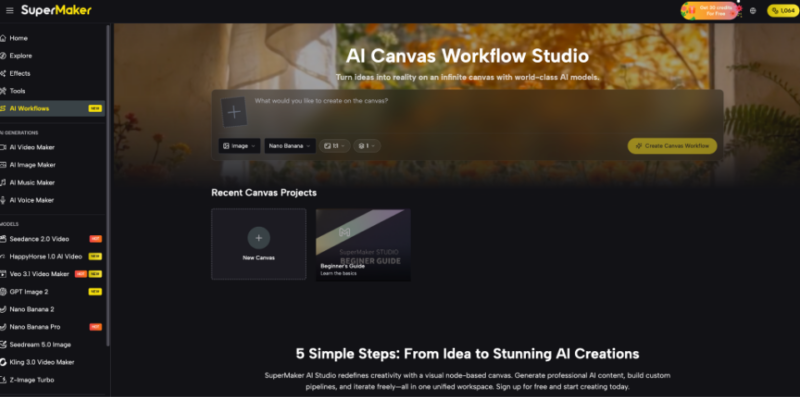
Most articles about improving on-page engagement focus purely on content ideas and ignore the technical cost of producing that content in the first place. Fewer explain how the media gets created without dragging performance down before it even reaches the caching layer. This article covers that gap, looking at how tools such as an AI Video Maker can fit into a WordPress workflow that still respects page speed, alongside practical steps for keeping generated media lightweight from the start.
Where WordPress Sites Typically Lose Speed
A few recurring issues show up across most sites struggling with load times, regardless of hosting or theme choice.
Oversized source files are the most common culprit, followed by inconsistent formats that force the browser to do extra work, and a lack of any pre-upload optimization step in the content workflow.
- Uploading Full-Resolution Source Files
Editing software often exports at a much higher resolution than any theme will actually display. Uploading that file directly wastes bandwidth on detail no visitor will see.
- Mixing Incompatible Video Formats
Some formats are poorly supported across browsers, forcing WordPress or a plugin to transcode on the fly, which adds server load every time the page is viewed.
- Skipping Compression Before Upload
Compression tools exist precisely because most export settings prioritize quality over size. Skipping this step means the caching plugin is working against a larger file than necessary.
- Auto-Playing Video on Every Page Load
Video set to autoplay for every visitor, regardless of whether they scroll to it, adds unnecessary load time to the initial page render even on a well-cached site.
Building a Lightweight Media Workflow
A sustainable approach separates content creation from content optimization, treating them as two distinct steps rather than expecting one tool to handle both automatically. Creating the visual first, in a format and resolution appropriate for web use, then running it through compression before upload keeps file sizes predictable.
For site owners producing their own video content rather than outsourcing to a video team, tools that export directly in web-friendly formats and reasonable resolutions cut out an entire cleanup step. Instead of exporting at maximum quality and then manually reducing file size, choosing sensible export settings from the start means less rework and a smaller file reaching the media library.
Applying This to a Real WordPress Setup
Consider a small business blog that wants to add a short product demo video to its homepage. Recording the raw footage and importing it into a heavy desktop editor would typically produce a large file that needs manual re-encoding before it is safe to upload. A more efficient path is to build the clip directly in a web-optimized format, keeping resolution and length appropriate for the page it will live on, so the file arriving in the WordPress media library is already close to its final size.
The same principle applies to featured images and inline graphics. Generating a properly sized visual through an AI Image Maker instead of exporting from a full design file avoids the common mistake of uploading a print-resolution image that a caching plugin then has to work harder to serve efficiently on every page load.
Checking Media Performance Before It Goes Live
Before publishing, it helps to run through a short checklist rather than assuming a caching plugin will handle every inefficiency automatically.
- Confirm File Size Against a Target Range
Set a rough size limit for images and short videos based on typical page weight for your site, and check new uploads against that number before publishing.
- Test Load Time on a Staging Page
Preview the post on a staging or draft page and check load time before pushing it live, rather than discovering an issue after readers start arriving.
- Verify the Format Is Broadly Supported
Confirm that video and image formats are broadly supported across common browsers so the server is not forced to convert files on request.
- Review Whether Autoplay Is Actually Needed
Decide deliberately whether autoplay adds value for that specific page, rather than leaving it on by default for every video across the site.
Measuring the Real Impact on Page Speed Scores
It is worth confirming that a lighter media workflow actually shows up in measurable numbers rather than just feeling faster. Running a page through a speed testing tool before and after switching to a leaner export process gives a concrete comparison instead of a guess, and it also highlights which specific asset, whether a hero video or a large inline image, is contributing the most to load time.
Many site owners are surprised to find that a single oversized video accounts for more delay than several smaller images combined. Isolating that one asset and re-exporting it at a smaller size or lower bitrate often produces a bigger improvement than trying to trim several files by a small amount each.
- Run a Baseline Test Before Changing Anything
Record current load time and page weight before adjusting the media workflow, so any improvement can be measured against a real starting point rather than assumed.
- Isolate the Heaviest Asset on the Page
Identify which single image or video file contributes the most to total page weight, since fixing that one asset often delivers more improvement than adjusting several smaller files.
- Re-Test After Each Change
Rather than changing multiple settings at once, adjust one variable, such as video bitrate or image compression level, and re-test before making further changes. This makes it clear which adjustment actually moved the needle.
- Set a Recurring Review Schedule
Media workflows tend to drift back toward larger file sizes as new team members or tools get introduced. A quarterly check keeps the whole site aligned with the same size targets over time.
Keeping Caching and Media Creation Working Together
A caching plugin and an efficient media workflow are not competing solutions; they solve different parts of the same problem. Caching reduces how often the server has to regenerate a page, while a lightweight media creation process reduces how much work the browser has to do once that page is delivered. Skipping either half of the equation leaves performance gains on the table.
Site owners who treat media creation as part of their performance strategy, rather than a separate creative task handled without regard for file size, tend to see more consistent load times as their content library grows. That consistency matters more over time than any single optimization, since a site that stays fast as it scales holds onto both search visibility and reader patience far better than one that slows down every time a new post goes live.
