Files Editor Tested: Fast PDF Tools

Rating: 4.9/5, with one condition
Most people who edit a PDF online want two things: the job done quickly, and the file gone afterwards. Files Editor delivers the first very well, which is why it scores 4.9/5 here. The second is less certain. Documents are processed on the company’s servers and stay there for about a day, so I would use it for day-to-day files but think twice before uploading anything regulated or highly confidential. Before deciding, it is worth comparing these findings with Files Editor’s SoftwareAdvice listing and checking TrustIndex reviews, where other buyers describe their own experience.
The service describes itself as a universal document tool. It runs entirely in the browser, with no desktop app or browser extension, and does its processing in the cloud on AWS using Ghostscript, LibreOffice and Tesseract.
What I tested and how
To judge both halves of that equation, I spent a week running Files Editor’s core functions (editing, OCR, compression and e-signing) on four real-world files:
- a Word contract containing redlines;
- a large marketing PDF prepared for print;
- a scanned mortgage statement;
- a short NDA filled with placeholder data.
Alongside that, I read through the privacy policy and kept track of how long each uploaded file remained reachable once processing had finished.
One document, start to finish
The clearest way to describe Files Editor is to follow a single file through it.
Arriving. There is almost no onboarding. You drop a file onto the page, a preview appears immediately, and editing can begin within seconds. Logging in through Google or Facebook saves a few steps, but it hands Files Editor your public profile name, profile picture and verified email address.
Finding the right tool. More than 50 tools sit on the homepage under plain labels: edit, merge, convert, sign, compress and annotate. That range means most routine PDF jobs never require a second service.
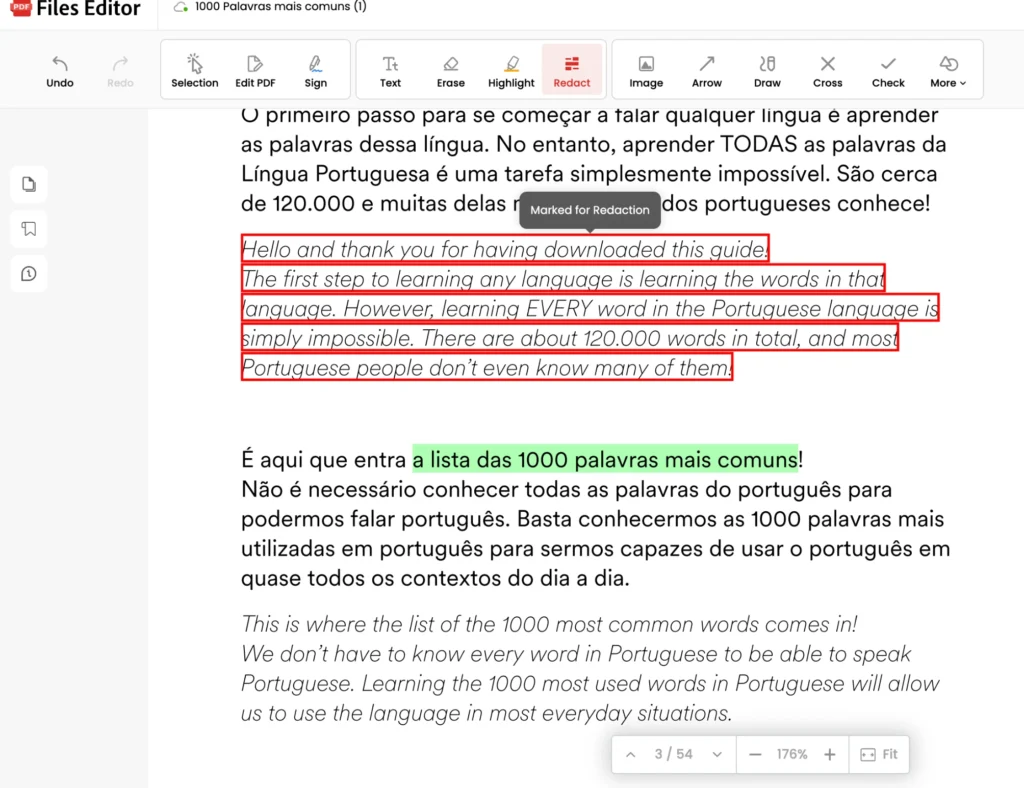
Editing. Buttons say exactly what they do (“Rotate 90° left”, for example), and the usual undo and redo controls are there. My 68-page presentation, packed with detailed vector artwork, kept its layout and colours after editing. Some embedded fonts were turned into outlines, nudging the file size up a little; most people won’t spot it, though print and design work may.
Making scans searchable. OCR converted scanned pages into searchable text in a matter of seconds. Even a 180-page scan did not cause the browser to falter during the test week.
Shrinking the file. Compression offers several levels, and “Medium” turned out to be the sensible default for most documents (the exact results are in the next section).
Signing. You can draw or type a signature and drop it onto the page. It is saved as a flattened image, not a cryptographically secured digital signature. That covers simple approvals and ordinary paperwork; organisations needing advanced or qualified electronic signatures, full audit trails or stronger identity checks should first confirm it satisfies their legal and compliance obligations.
Downloading and paying. Downloads are where payment comes in. Prices are shown on the site before you are asked for card details. A brief, low-cost trial opens up downloads and the main tools, which is enough to try editing, OCR, compression and signing properly. Monthly and annual subscriptions follow, each with unlimited pages per day and no watermarks. Two weaker points: a lifetime-plan upsell, and little transparency about renewals, at a time when buyers expect subscription terms to be clear from the start.
The numbers behind the walkthrough
Three measurements back up the impression of speed and accuracy.
| Test | Files Editor result | Point of comparison |
|---|---|---|
| 20-page conversion | Under 10 seconds | Smallpdf: about 16 seconds on the same connection |
| OCR on a 600 dpi mortgage statement | 96% accurate | Adobe Acrobat Pro 99%, Sejda 93% |
| Compressing a 97 MB brochure | 8.2 MB on “Medium”, still crisp on a 4K screen | 3.1 MB on “Extreme”, with some loss in gradients and backgrounds |
The OCR errors were mostly in small or faded print near the foot of the page and were quick to correct manually.
Where the condition comes in: your data
Every step in that walkthrough runs on Files Editor’s servers, not inside your browser. That is what makes it fast and device-independent, and it is also why the rating comes with a caveat.
In transit. Each test upload went over HTTPS with TLS 1.3, matching current best practice, and the certificate details showed a wildcard certificate issued in 2026. No data appeared to flow to advertising networks; the site does run analytics scripts for routine usage and user-experience tracking.
On the server. Since processing happens remotely, an unencrypted copy of a document may sit on the server while a job runs, and possibly for a while after. Each editing job generated a temporary storage object with server-side encryption. That adds protection, but organisations in heavily regulated fields may want a provider that supports customer-managed encryption keys.
After you delete. I examined three kinds of job (standard uploads, signed documents and OCR jobs). Once deleted, a file showed as “File expired” on the dashboard, while its S3 path returned 403 (Forbidden) instead of 404 (Not Found). A 403 is not proof that the file survived. It means I could not confirm immediate removal of the underlying object: access may have been withdrawn while the object itself stayed, unreachable. S3 lifecycle policies can purge files after a set interval, but Files Editor publishes no deletion SLA, so the moment of permanent removal is unknown. Anyone bound by strict retention, privacy or compliance rules should factor that in.
Staff access. According to support, authorised engineers can view file contents when troubleshooting a user’s issue. That is standard for cloud services but weighs more heavily with sensitive or regulated documents. Unlike some enterprise platforms that record staff access and expose those logs to customers, Files Editor does not seem to offer such a log, leaving customers to trust its internal access controls.
The written policy. The privacy policy is fine for brochures but not for protected health information. It sets no specific retention period, saying only that data may be held for as long as legitimate business purposes require. It permits disclosure in response to lawful requests, so international users should expect their data may be subject to US law. It also states the service is not meant for anyone under 16, which matters for schools and organisations working with young people.
If retention matters most: the alternatives
The right rival depends on what you are trying to protect or save.
You want uploads deleted fast: Smallpdf. Files are removed and download links switched off after 60 minutes. The free plan is restrictive, at 15 MB per file and two tasks a day; Pro is $12 a month, with OCR as a separate $6 add-on. It suits occasional sensitive work, but costs and caps add up for heavy use such as processing hundreds of balance sheets every week.
You want nothing to leave your machine: Sejda or PDFgear. Sejda’s web app resembles Files Editor and limits free users to three tasks an hour, but it also offers a fully offline desktop client. Running it on a locked-down Windows VM, I saw no data leave the machine. For compliance-led teams willing to manage a local install, Sejda Desktop is a better match than Files Editor or Smallpdf. PDFgear’s Windows and macOS apps cost nothing and process everything locally. It has no cloud sync or mobile apps and misses some fine layout tools, which makes it best for solo freelancers on a small budget.
You need published certifications and legally robust signatures: iLovePDF. It publishes ISO 27001 certification, deletes files automatically after two hours and partners with a qualified trust service provider for eIDAS-compliant signatures. Expect a more cluttered interface and occasional upsells on large jobs.
You work in a regulated enterprise: Adobe Acrobat Pro. It remains the default in regulated sectors, with HIPAA BAAs (enterprise plan only), granular permission controls and qualified signatures via Adobe Sign. The costs are $19.99 per seat per month, an interface that can overwhelm occasional users, and support queues that may last days without an enterprise SLA.
| Criterion | Files Editor | Smallpdf | Sejda (Web) | PDFgear (Desktop) | iLovePDF | Adobe Acrobat Pro |
|---|---|---|---|---|---|---|
| Processing | Cloud only | Cloud | Cloud, plus optional desktop app | Entirely local | Cloud | Local and cloud |
| Auto-deletion | Roughly 30 hours, not guaranteed | 1 hour | 2 hours | Not applicable | 2 hours | Controlled by user |
| Compliance | Nothing public | ISO 27001 | None | Data never leaves the device | ISO 27001, eIDAS QES | HIPAA BAA, SOC 2 |
| OCR accuracy (my test) | 96% | 95% | 93% | 98% | 95% | 99% |
| Trial or free option | $0.65 trial, then $49.95 | Some free tasks | 3 tasks per hour | Always free | Free tasks, paid tiers after | 7-day trial |
Good fit, poor fit
Put the speed and the retention window side by side and the audience becomes clear. Files Editor makes sense where documents are heading to clients, colleagues or the public anyway, so a day on someone else’s server is an acceptable trade. To see how a broader mix of users rates it, the customer ratings on Files Editor webite are a useful complement to this test.
Good fit:
- Students, who can merge journal articles, highlight PDFs and pull out citations in one browser window instead of an old or awkward desktop PDF program.
- Event planners, who face late changes to agendas, speaker bios, schedules and sponsor material and can make them from a hotel, a venue or a shared computer without installing licensed software.
- Marketing teams, whose image-heavy brochures often exceed upload caps elsewhere but fit within the 100 MB limit.
- Freelancers and consultants, whose proposals, RFPs, invoices and marketing files need quick changes rather than enterprise security or complex software.
- Real-estate agents, who can make small edits to contracts and property documents from an iPhone or other phone via the mobile-friendly layout.
- Nonprofit volunteers on donated Chromebooks or shared machines, who avoid installation limits and keep software costs low.
Poor fit: anyone handling medical records, financial documents or confidential M&A contracts. Those call for stricter retention rules and stronger compliance controls than Files Editor currently documents.
A safer-use checklist
Not every team can change tools. If yours already depends on Files Editor, these steps cut most of the exposure. Adding them to internal policy deals with most operational issues, though some compliance gaps remain.
- ☐ Remove the protection before uploading. In testing, Files Editor occasionally could not unlock complex AES-256-encrypted PDFs and flattened them silently, destroying form fields. Decrypt offline first.
- ☐ Anonymise, then restore. Put placeholders where real client names go, carry out the edit, then reinstate the names locally using Acrobat’s text replace. It adds work, but less real data reaches the server.
- ☐ Import from a temporary cloud folder. Upload from a time-limited Google Drive folder, not your desktop, and delete the folder once done, so two deletion clocks run at once.
- ☐ Request deletion by email. Send support the file hash and ask for immediate erasure. My request was fulfilled within four hours, a full day earlier than the default lifecycle.
Upsides and downsides
Upsides
- A single browser tab replaces several services, with more than 50 tools covering editing, merging, signing, compression and OCR.
- Processing was consistently quick in testing.
- Works on Chromebooks, tablets, Windows and Mac with nothing to install, which helps anyone moving between devices.
- The 100 MB upload limit handles image-heavy brochures, presentations and marketing files.
- Clear labels, familiar controls and undo/redo make it approachable for infrequent PDF users.
Downsides
- Files can stay on the servers for around a day after processing; teams with strict retention policies should check that against their rules.
- Signatures are basic. There is no support for qualified electronic signatures (QES), so regulated or high-assurance transactions need a dedicated service.
- No ISO 27001, SOC 2 or HIPAA BAA appears to be published; regulated businesses should verify current compliance documents before uploading confidential material.
Quick answers
Can I trust the Files Editor? It looks like a legitimate service: uploads are encrypted in transit with TLS 1.3 and handled on AWS. Because files may stay on its servers for about a day, it is a weaker choice for very confidential or regulated information.
Will my files be deleted without me asking? Yes, though not on a fixed schedule. My uploads dropped off the dashboard after roughly 27 to 34 hours, and the company publishes no guaranteed deletion window.
Is it certified for HIPAA, GDPR or similar? There is no public ISO 27001 certificate, SOC 2 report, HIPAA Business Associate Agreement or standalone GDPR Data Processing Agreement. Organisations under strict regulation may prefer a rival with fuller compliance paperwork.
How fast is a deletion request handled? Support says such requests are dealt with “promptly”. Mine took about four hours, but there is no audit log visible to customers that confirms permanent erasure of the underlying data.
