How to Keep WordPress Media, Backups, and Reports Organized as Your Site Grows

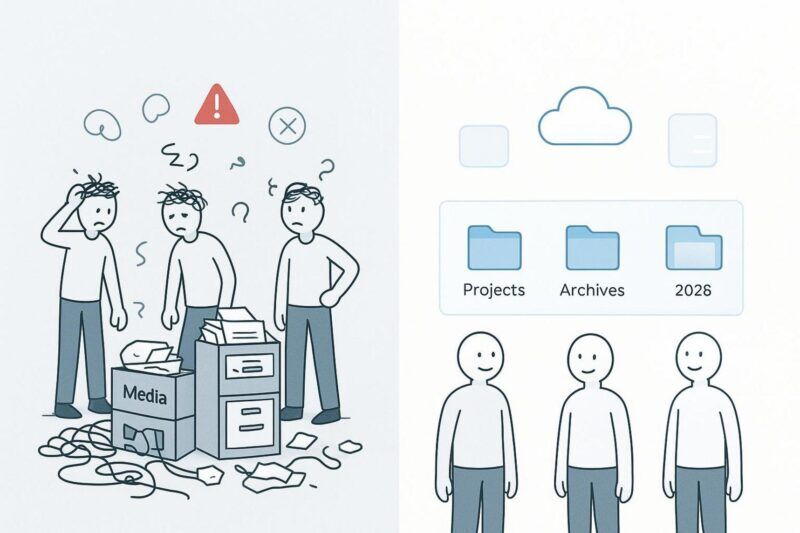
As your WordPress site grows from a small blog into a bigger online presence, the amount of content you store — images, videos, documents, and data — can pile up fast. It’s easy for things to get messy. The good news is that you can keep everything under control. With a few clear habits and the right tools, you can organize your WordPress media library, backups, and key reports so your site stays fast, efficient, and easy to run.
If you ignore organization, a growing media library can slowly drag down site speed, inflate your backups, and turn simple admin work into an endless hunt for files. Plan ahead and build a simple system, though, and you can avoid most of these problems.
This article covers practical steps for managing media files, setting up backups, and storing reports so they are easy to find later. If you handle a lot of data — especially across several sites or with a team — secure cloud storage can give you a protected, flexible place to keep important files organized and accessible when you need them.
Keeping a WordPress site organized is an ongoing job, but it doesn’t have to feel like a heavy burden. With a clear plan, it becomes a simple routine that keeps your site lean, fast, and much easier to manage.
Key Strategies to Organize Your WordPress Media Library
1. Folder and Category Organization
The default WordPress Media Library has basic filters (file type and upload month), but that isn’t enough once you have hundreds or thousands of files. There’s no built-in folder system, so you’re left with one long list that keeps growing. That’s why many site owners turn to plugins that add folders or categories to their media.
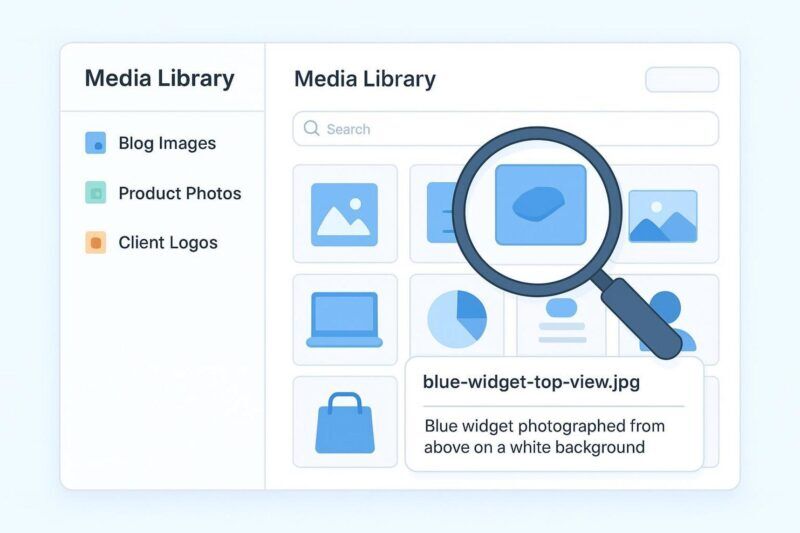
A good folder structure turns your media library into something you can actually navigate. You might create folders like “Blog Images/2026/July,” “Product Photos/Electronics/Smartphones,” or “Client Logos/Acme Corp.” This lets you jump straight to the right files instead of scrolling forever. Media organization plugins usually let you add folders and subfolders, move files with drag and drop, and sometimes apply colors for quick visual sorting. It also helps your media layout mirror the way your site content is structured, which keeps things consistent over time.
That consistency supports good SEO habits, too, since your internal organization can align with your file names and image alt text.
2. File Naming Conventions and Metadata
Folders help, but file names matter just as much. Avoid names like “IMG001.jpg” or “screenshot.png.” Use simple, descriptive names that say what the file is. For example, “blue-widget-product-photo.jpg” is far more useful than “widget1.jpg.” Good naming helps you find files quickly and gives search engines better clues about what an image contains.
Metadata — alt text, titles, and descriptions — also helps with search and accessibility. Alt text is especially important: screen readers use it to describe images to people who can’t see them, and search engines use it to understand the image. WordPress lets you add this manually, and some media plugins can suggest titles and alt text automatically. Tools like Media File Renamer can also rename files and update links across your site, so you don’t create broken images. A simple rule like “rename and add alt text on upload” is an easy habit that pays off as your site grows.
3. Removing Duplicate and Unused Files
Over time, most media libraries accumulate duplicate files, old draft images, unused design files, and stray thumbnails. WordPress won’t flag these for you, so they keep taking up space. Removing duplicate and unused files is one of the best ways to cut bloat and keep storage under control.
Plugins like Media Deduper or Media Cleaner can scan your library and find duplicates or files that aren’t attached to any content. From there, you can review and delete what you don’t need. Be careful, though: always take a backup before deleting anything. Some files that look unused may still be referenced in page builder layouts or custom fields. Better tools include “Smart Delete” checks to reduce the risk of breaking pages. Do this cleanup regularly and your media library stays smaller and far easier to manage.
4. Optimizing and Compressing Media Assets
One of the best ways to speed up a WordPress site and reduce storage use is to optimize your images and other media. Large, uncompressed images are a common reason websites load slowly. That can hurt your Largest Contentful Paint (LCP) and other Core Web Vitals scores, which can also affect search results.
Image optimization has two main parts: resizing and compression. Resizing means an image shouldn’t be larger than the space where it’s displayed. Uploading a 4000px-wide image for a slot that renders at 800px, for instance, wastes space and bandwidth. Compression shrinks file size while keeping the image looking good. Plugins like Imagify and ShortPixel can handle both automatically as you upload. Many also convert images to WebP, which usually produces smaller files. Check whether your plugin offers an option like “Remove original images after optimization,” too — turning it on saves real space instead of hoarding the big originals. With consistent optimization, your site loads faster, your server stays lighter, and visitors get a better experience.
5. Offloading Media to Cloud Storage
For sites that rely on a lot of media — photography portfolios, online stores, large blogs — moving media to cloud storage can be one of the smartest scaling steps. Offloading means storing your media files (images, videos, PDFs, and more) in cloud storage instead of on your web host. From your WordPress dashboard, the Media Library still looks normal, but the files live elsewhere, which frees up server space.
The main benefits include:
- Easy scaling: Cloud storage grows with your needs, so you’re far less likely to hit storage limits.
- Better performance: Many cloud setups pair with a CDN, so images load from a server close to the visitor, which can reduce load times.
- Lower hosting costs: You may be able to run a smaller hosting plan since media storage is handled separately.
- Smaller backups: With media stored off your server, backups can be smaller and faster, and restores can be quicker too.
Popular options include Amazon S3, BunnyCDN storage, and DigitalOcean Spaces. Plugins like Infinite Uploads, WP Offload Media, Media Cloud, or Next3 Offload can move files automatically and update URLs so your pages keep working. It’s a practical long-term solution for any site that expects its media library to keep growing.

How to Simplify and Manage WordPress Backups
Automating Scheduled Backups
A solid backup plan is one of the most basic parts of managing WordPress, yet many site owners still overlook it. Manual backups take time, are easy to forget, and tend to be inconsistent. That’s why scheduled, automatic backups are essential for any growing site. Automation means your files and database are backed up regularly, protecting you from hacks, server failures, plugin conflicts, and accidental deletions.
Most good backup plugins let you choose a schedule. Pick a frequency that matches how often your site changes: a busy online store may need daily or even hourly backups, while a simple site with rare updates may be fine with weekly ones. The key is that automation removes the guesswork and lowers your risk of data loss, so you can focus on growing the site instead of worrying about what might break.
Choosing the Right Backup Storage Location
Automatic backups help, but where you store them matters just as much. A common mistake is saving backups on the same server as the live site. If that server crashes or gets hacked, you could lose both your website and your backups at once — which defeats the entire purpose.
A good rule is to store backups offsite. Keep them on a separate server or cloud service, away from your main hosting. Common options include Amazon S3, Dropbox, Google Drive, or a dedicated enterprise cloud storage service. These services are built for storage, availability, and security. A simple plan is to keep one local copy (for quick, small restores) and one or more offsite copies (for serious problems). That gives you real protection even if one location fails.
Deleting Old or Redundant Backups
Backups are important, but keeping too many old ones creates new problems. If your backup plugin stores a long history of large files — especially on your server — it can consume storage fast. That leads right back to the bloat you’re trying to avoid and can push you into higher hosting costs.
Set a clear retention plan. For example:
| Backup type | How many to keep |
| Daily backups | Last 7 |
| Weekly backups | Last 4 |
| Monthly backups | Last 3 |
Most backup tools can automate this cleanup so older backups are deleted without any manual work. Check your storage every so often to confirm the system is doing its job. This keeps storage costs under control while still giving you enough restore points to stay safe.
Testing and Restoring from Backups
A backup is only useful if you can actually restore it. Many people skip testing, then discover during an emergency that their backups are broken or incomplete. You can avoid that by testing regularly.
Set a routine to test restores on a staging site or local setup — never on the live site. Restore a recent backup and confirm that pages load, features work, and the database is intact. This helps you catch issues early. It’s also smart to document the restore steps so someone else on your team can handle it if needed. Tested backups mean less panic and less downtime when something goes wrong.
Best Practices to Maintain WordPress Site Organization as You Grow
Regularly Auditing and Cleaning Up Media
Organization isn’t a one-and-done task. Your site keeps changing, and files keep piling up. That’s why it helps to review your media library regularly — monthly or quarterly, depending on how active your site is.
During these checkups, look for unused images, videos, and documents, and remove duplicates where it’s safe to do so. Plugins like Media Deduper or Media Cleaner can help identify files you may not need. Keep an eye on your library’s overall growth, too. A sudden jump in size may signal that you need stronger image optimization or a better offloading setup. Regular cleanup keeps storage down, helps site speed, and makes day-to-day work easier.
Monitoring Backup Size and Frequency
Like your media, backups need regular review. Watch how large your backups are getting and confirm they run on schedule. If backup sizes grow faster than expected, it usually points to media growth or extra files you don’t need.
Also check your backup logs for errors. As your site becomes more active — you publish more often, or start selling products — you may need to back up more frequently. Keeping an eye on these details helps you keep backups reliable without wasting resources.
Scheduling Routine Site Maintenance
Staying organized also means keeping the site healthy overall. Set a regular maintenance schedule that includes updating WordPress core, themes, and plugins; updates often bundle security fixes and performance improvements.
Remove inactive plugins and themes you don’t use, too. Even when disabled, they can still create security risks. Run database cleanup to clear old revisions, spam, and temporary data that can bloat your database. And check for broken links and fix them. Think of this as routine cleaning for the whole site: a well-maintained site is faster, safer, and easier to grow.
Conclusion: Taking a Proactive Approach to a Healthy WordPress Site
Managing a growing WordPress site works best when you plan ahead and keep things organized from the start. A basic media library and ad-hoc backups might work for a small site, but they won’t hold up as your content grows. For many websites, moving media to the cloud becomes a practical step toward staying fast, scalable, and cost-friendly.
Beyond faster page loads, lighter hosting demands, and smaller backups, good organization also reduces stress. You no longer have to worry as much about storage limits, slow performance, or lost data.
With a simple system for media, backups, and reports — plus regular cleanup and maintenance — you protect your site’s speed, uptime, and trustworthiness. That frees you to focus on content, visitors, and growth instead of wrestling with file chaos and technical headaches.