
Proxy Error Troubleshooting Guide for Beginners

There is a special kind of chaos that happens when a proxy error appears out of nowhere. It is never dramatic enough for a full-blown crisis, but annoying enough to ruin your flow. And of course, it always picks the worst possible moment – mid-task, mid-scroll, mid-anything that actually matters.
But relax, it is a small problem that needs a bit of fixing – the kind of thing that can leave a page stuck even when your connection is fine. That is what this guide is about. You will see what is actually happening when proxy errors show up and how to fix them without losing your mind.
What Is A Proxy Error: Understanding The Basics
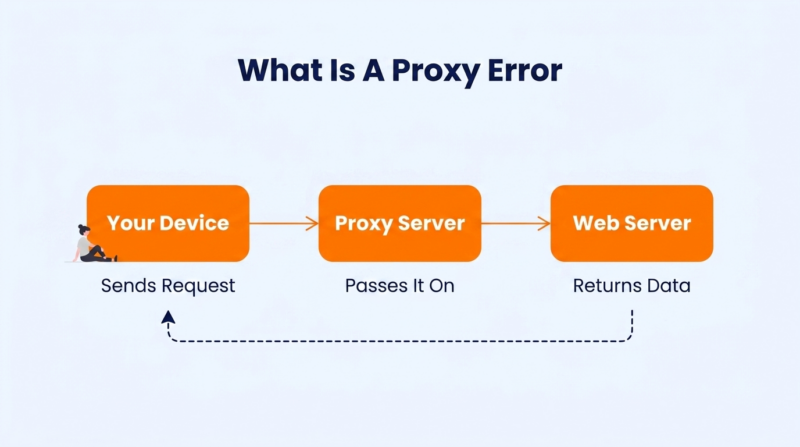
Let’s start from the ground up. A proxy error shows up when there is a communication gap between your device and the website or server you are trying to reach. In simple terms, a proxy acts as a middle layer – it takes your request, passes it to the web server acting on your behalf, and brings the data back to you.
When that middle layer runs into a problem, your browser displays a proxy error. You will usually see messages like “Proxy Server Error,” “502 Bad Gateway,” or “The proxy server isn’t responding.” They all mean the same thing – something went wrong in the chain of communication.
Remember, a proxy error doesn’t mean your computer or the website itself is broken. It is just the go-between – the proxy – struggling to deliver your request properly. Once you figure out where the breakdown is happening, fixing it becomes much easier.
7 Reasons Why Proxy Errors Happen

15% of proxy users run into connection errors each month, which shows how common these issues are. Let’s go through the 7 main reasons behind those errors.
1. Misconfigured Proxy Settings
Most proxy issues start here. When the proxy settings on your device or browser are off, even slightly, communication between your device and the proxy server breaks.
- You might have entered the wrong IP address or port number.
- The incorrect proxy setting could be pointing to a server that doesn’t exist anymore.
- Your system might still be using old configuration files or cached settings.
Simply put, your computer is trying to reach the wrong middleman. The request never gets where it should, and you get a proxy error.
2. Server-Side Issues
Sometimes, the problem isn’t on your end at all. In many cases, the root cause is simple proxy server overload rather than a configuration problem.
- The server could be undergoing maintenance.
- It might have crashed or lost connection to the destination website.
- The admin might have restricted access to certain regions or IPs.
When the proxy server fails mid-communication, your browser has nothing to work with. It just shows a proxy error message. This kind of issue usually affects people who handle multiple social media profiles or engagement tools.
A weak or unstable proxy setup can get those accounts flagged for suspicious activity. The platforms detect too many logins from the same IP, assume it is automation, and block requests altogether.
3. Firewall Or Antivirus Blocking Proxy Connections
Firewalls and antivirus software are important for online security, but they can get overprotective. They sometimes treat proxy traffic as suspicious – especially if it is going through non-standard ports.
- The firewall might be blocking the proxy’s IP address.
- Security software might see the proxy as unsafe and stop the connection before it starts.
- Corporate networks usually block unknown proxy traffic altogether.
This is one of those cases where “too much security” creates more problems than it solves and interrupts normal browsing. And agencies managing marketing workflows or recovering business assets face this kind of issue more often than others. They unknowingly cause proxy conflicts by switching between multiple IPs or logins too quickly.
4. ISP-Level Restrictions
Your Internet Service Provider (ISP) can also interfere with proxy connections. And it is more common than most people think.
- Some ISPs block certain proxy IP ranges to prevent bypassing regional restrictions or content filters.
- Others may throttle or cut off traffic passing through anonymous or public proxies.
- In rare cases, government regulations push ISPs to block entire proxy networks.
When that happens, no amount of local tweaking helps because the block is happening at the ISP’s end.
5. Expired Or Overused Proxy IPs
If you are using shared or public proxies, this one is a big deal. Proxy IPs have a lifespan, and popularity shortens it.
- Websites can detect when the same IP sends too many requests and blacklist it.
- Some proxy providers recycle old IPs that are already banned.
- And if you are on a paid plan, your access might just have expired.
An expired or blacklisted IP can’t deliver your request successfully, and that is when many proxy errors occur. Teams running large-scale data scraping or omnichannel marketing face this first. Once too many requests come from the same IPs, you will see connections fail one after another.
The quickest way to burn a set of IPs is volume against one target. Serious data collection is systematic pulls from content-rich sources, the same domain hit hundreds of times to capture every field. And dep reference pages attract this the most. That repeated pattern from a handful of shared IPs is exactly what gets those addresses flagged and blacklisted.
Take this detailed profile on wahoo fish. Aggregators building a food-service or pricing dataset want precisely this kind of clean, organized record. So they return to pages like it on a schedule and pull each field over and over.
Do that from three or four recycled proxies and those IPs are cooked within days. The target keeps seeing the same addresses request the same structured data on repeat, so it cuts them off.
This is why rotation and genuinely fresh IPs matter more the richer your sources get. The denser and more organized the page, the more requests it invites, and the faster a static pool of IPs expires against it.
6. Network Congestion Or DNS Issues
A proxy connection still depends on your local network and DNS to reach its target. When either of those glitches out, you get communication failures.
- Slow or unstable internet can cause a request timeout.
- DNS problems can stop the proxy from finding the correct server address.
- Temporary routing issues can break the link between your device, the proxy, and the destination site.
So, even if your proxy setup is perfect, unstable network conditions can still break the chain. This sort of thing is really common with eCommerce sites or online lookbooks – the ones filled with high-resolution visuals and rich media. You click through a few products, and suddenly, the page drags, or images stop loading halfway through.
For a regular user, it is frustrating. But for the brand, it is a conversion killer. So, even if your proxy setup is perfect, unstable network conditions can still break the chain. This shows up most clearly on web apps where one action depends on several requests finishing successfully rather than a single page load.
Take this review management platform. Scheduling review requests after an order is delivered looks like one click, but behind the scenes, the app still has to reach the server, validate the order, save the campaign, and return a confirmation. If DNS resolution stalls or the connection drops partway through, that workflow can fail even though the proxy itself is configured correctly.
That is why network congestion and DNS issues are worth checking early. A proxy can only pass traffic along. It cannot fix a broken route between your device and the destination.
7. Proxy Authentication Or Credential Problems
If your proxy needs login details, this one is straightforward – wrong credentials mean no access.
- Entering the wrong login details is the most common cause.
- Some providers rotate credentials periodically, and your device might still be using old ones.
- Corporate proxies rely on domain authentication – if your session expires, you lose access.
When authentication fails, the proxy doesn’t even attempt to forward your request. It simply rejects it and leaves you with an error message on your screen.
8 Common Types Of Proxy Errors You Will Encounter & How To Fix Them
Every HTTP response falls under 1 of 5 HTTP status code classes – 1xx for informational responses, 2xx for success, 3xx for redirects, 4xx for client-side errors, and 5xx for server-side issues. Most proxy errors show up in the 4xx or 5xx class, which means something went wrong either in your request or on the proxy or target website’s end.
Now, let’s go through the 8 most common proxy error codes and types you will see, and exactly what to do when they appear.
1. HTTP 403 – Forbidden Or Blocked Access
You reached the web server, but it is refusing to show the content. This usually happens when:
- The website has blacklisted your proxy’s IP address.
- The proxy is using a region or country that the website doesn’t allow.
- Your proxy credentials don’t have the right permissions.
One thing worth knowing before you spend an hour on this: a 403 is not always your mistake. Plenty of consumer brands return a 403 on purpose. Their site is a logged-in, personalized experience, and they run bot rules that reject datacenter and recycled proxy IPs before those requests ever reach a page.
Data center proxies are especially likely to trigger these automated checks because they are easier for websites to identify than residential proxies.
This fragrance subscription service is a clear example of that kind of site. It is built around a scent quiz and a member queue you rearrange month to month, with skip and pause controls kept behind a login.
That personalized experience, plus live inventory on hundreds of designer fragrances, is exactly what the brand doesn’t want scraped or hammered. When requests arrive from known proxy IPs or without the cookies and session data a normal browser sends, the site’s protection systems are much more likely to deny access with a 403 than serve personalized content.
For the reader staring at a 403, that distinction is the whole fix. If a lightweight, unprotected page blocks you, switching IP or region usually clears it.
If a direct-to-consumer brand blocks you, no amount of proxy swapping helps, because the wall is intentional and tuned to catch exactly the kind of IPs a proxy hands you. Knowing which of the two you are hitting saves an hour of changing settings that were never the problem.
How to Fix It:
- Switch to a different IP or region.
- If you are using shared or free proxies, upgrade to a private one – more than 60% of free proxies stop working within 24 hours.
- Check your proxy provider’s dashboard for region restrictions or access limits.
- Clear browser cookies and cache, then retry. Some sites block sessions based on stored data.
2. HTTP 407 – Proxy Authentication Required
Your proxy needs login credentials, but they are missing or incorrect.
How to Fix It:
- Double-check your username and password in your proxy settings.
- If you are using a browser, make sure the login prompt appears. Some browsers block it by default.
- Update saved user account credentials in your system proxy settings or app.
- If it is a company proxy, ask your IT admin if your credentials expired or were reset.
3. HTTP 502 – Bad Gateway
The proxy tried to connect to the upstream server, but got an invalid response or none at all. In some cases, the target might return an “Internal Server Error” response status instead of a clean response, which still ends up triggering a proxy error on your end. This could mean:
- The target server is down or unstable.
- The proxy server is overloaded.
- There is a temporary miscommunication between the proxy and the destination.
How to Fix It:
- Refresh after a few minutes – this one is usually temporary.
- If you manage the proxy, restart the proxy service to clear stuck sessions.
- Switch to another proxy location to confirm if the original one is the issue.
- Check the website’s uptime using a tool like DownDetector. It might not be your proxy at all.
4. HTTP 504 – Gateway Timeout
Your proxy waited too long for the destination server to reply and gave up. The request timed out midway. Common causes are:
- Slow internet connection or high latency.
- The proxy or target server is overloaded.
- DNS or routing delays between proxy and target.
How to Fix It:
- Test your internet speed first. If it is slow, fix that before blaming the proxy.
- Try a different proxy region – some routes are faster than others.
- If you are using a manual proxy, increase the timeout setting (some software allows that).
- Restart your router to refresh your local DNS cache.
If the endpoint that keeps timing out is your own WordPress site, the lag usually traces back to the site, not the proxy. Tightening its speed and performance and enabling GZIP compression shrinks each response, so pages come back before the gateway gives up on them.
5. ERR_PROXY_CONNECTION_FAILED
Your browser tried to connect through the proxy but couldn’t establish any link at all. This usually points to:
- Wrong proxy IP or port entered.
- The proxy server is down.
- Local network issues are blocking the connection.
How to Fix It:
- Recheck your proxy configuration. A single digit in the IP or port can break it.
- Disable the proxy temporarily and see if you can access the internet directly.
- If it works without the proxy, the issue is definitely on the proxy side. Try a new one.
- Check if your firewall or antivirus is blocking the proxy IP or port.
6. “Proxy Server Refused Connection” Or “Proxy Server Not Responding”
Your browser reached out to the proxy, but the proxy didn’t respond or rejected the request. That means the proxy service isn’t active or is refusing new connections.
How to Fix It:
- Confirm that the proxy service is online (check your provider’s status page).
- Restart the proxy software if you are running your own server.
- Remove and re-add the proxy settings. Sometimes cached configs cause the refusal.
- If you are using public proxies, try another one. These usually go offline without notice.
7. DNS-Related Proxy Errors
Your system or proxy couldn’t translate the domain name (like example.com) into an IP address. The request dies before even reaching the site. Common triggers are:
- Faulty DNS cache on your device.
- DNS settings mismatch between your proxy and system.
- The DNS server your proxy uses is down.
How to Fix It:
- Clear your DNS cache (ipconfig /flushdns on Windows, sudo dscacheutil -flushcache on macOS).
- Change DNS servers to public ones like Google DNS (8.8.8.8, 8.8.4.4).
- Check if the proxy’s DNS settings are configured correctly in your client.
- Restart your network adapter to refresh routes.
8. SSL Certificate Proxy Errors
This happens when the proxy intercepts HTTPS traffic but can’t verify the SSL certificate between you and the target website. Causes include:
- The proxy doesn’t support modern SSL/TLS versions.
- The target site’s certificate chain is broken.
- The proxy’s internal certificate is expired or self-signed.
How to Fix It:
- Make sure SSL inspection or HTTPS decryption is properly configured on your proxy (especially on corporate networks).
- Update the proxy to the latest version to support newer TLS protocols.
- If you see this on multiple sites, re-import or renew the proxy’s SSL certificate.
- For local setups, disable HTTPS scanning in your antivirus to see if that is interfering.
If the site showing the error is your own, rule out the simplest cause first. Confirming that HTTPS is enforced site-wide removes the mixed HTTP and HTTPS requests that can leave a proxy unable to complete the handshake.
How To Troubleshoot Proxy Errors On Different Operating Systems
Sometimes proxy errors come from your operating system’s own settings. Here’s how to debug proxy errors properly on each platform.
1. Windows
Windows loves hanging on to old proxy settings, even when you have switched networks. That is usually where the problem starts. Here’s how to fix it.
a. Check system proxy settings:
- Press Windows + R, type inetcpl.cpl, and hit Enter.
- Go to the Connections tab → LAN settings.
- Uncheck “Use a proxy server for your LAN” if you are testing a direct connection.
- If you use a proxy, make sure the address and port match your provider’s info exactly.
b. Reset network stack:
- Open Command Prompt (Admin) and run these commands one by one:
netsh winsock reset
netsh int ip reset
ipconfig /flushdns
- Restart your computer afterward. This clears out cached routes, bad DNS entries, and stale proxy references.
c. Check environment variables (for manual proxy setups):
- Type “Edit the system environment variables” in Windows Search.
- Look for any variables like http_proxy or https_proxy.
- Delete or update them if they point to an outdated proxy.
d. Firewall and antivirus scan:
- Temporarily disable your antivirus or firewall to see if it is blocking the port or proxy IP.
- If it is, whitelist the proxy address and re-enable protection.
2. macOS
On macOS, proxy settings are stored per network profile, so switching between Wi-Fi networks can easily cause mismatches. Here’s what to do.
a. Check current proxy configuration:
- Go to System Settings → Network → [your active network] → Details → Proxies.
- Look for any proxy boxes checked under Web Proxy (HTTP) or Secure Web Proxy (HTTPS).
- If you don’t use a proxy, uncheck all boxes.
- If you do, confirm the IP and port are exactly what your provider gave.
b. Clear DNS cache:
- Open Terminal and run:
sudo dscacheutil -flushcache; sudo killall -HUP mDNSResponder
- Enter your password when prompted. This refreshes the system’s DNS resolver.
c. Test connectivity directly:
- Disable the proxy entirely, open Safari or Chrome, and visit any site.
- If it loads fine, your proxy settings are definitely the issue.
d. Check Keychain credentials:
- Open Keychain Access, search for your proxy’s URL or IP.
- Delete any saved entries that might have outdated passwords or expired certificates.
3. Linux
Linux users often set proxies system-wide or per environment, and conflicts between those two can easily cause errors. Here’s how to fix it.
a. Check environment variables:
- In your terminal, run:
echo $http_proxy
echo $https_proxy
- If you see old or incorrect proxy URLs, remove them by editing your shell config file:
nano ~/.bashrc
Then remove or update any lines setting those variables.
b. For NetworkManager (desktop users):
- Open Settings → Network → Network Proxy.
- Set it to “None” if you want to disable it or enter your proxy’s correct details.
c. Clear DNS cache:
Depending on your distro:
sudo systemd-resolve –flush-caches
or
sudo service network-manager restart
d. Verify your proxy connection:
- Test with:
curl -I –proxy http://yourproxy:port http://example.com
- If this fails, the proxy itself is unreachable, or the credentials are wrong.
If you are still stuck after trying all this, it is totally fair to bring in an experienced software developer. Linux handles proxy configurations differently across distributions, and even a small mismatch in environment variables or systemd services can throw everything off.
Debugging that means you have to spot conflicts faster and fix hidden configuration errors. The right person can streamline that entire process – digging into shell scripts, permissions, or daemon logs to trace what is breaking communication, then setting up a clean, stable proxy environment that stays intact even when you switch networks or restart services.
Conclusion
Proxy errors aren’t worth the panic they cause. They show up loud and confusing, then turn out to be something small that was out of sync. Once you have handled a few, you start realizing they are more like quick tune-ups than full-blown breakdowns.
So, stop treating proxy errors like mysterious disasters and approach them like routine maintenance. The more you troubleshoot, the less intimidating these errors feel.
One last thing from our side. A good share of the “slow to load” and “half-loaded page” moments people blame on a proxy actually start at the WordPress site itself, and that is the part we work on.
We built WP Fastest Cache to keep your pages fast whether or not the network is cooperating. It handles caching and minification out of the box. GZIP compression and lazy loading are built in, with WebP image optimization on the premium plan. Over 1.5 million sites run it, and setup takes minutes rather than an afternoon of config files. Try now.