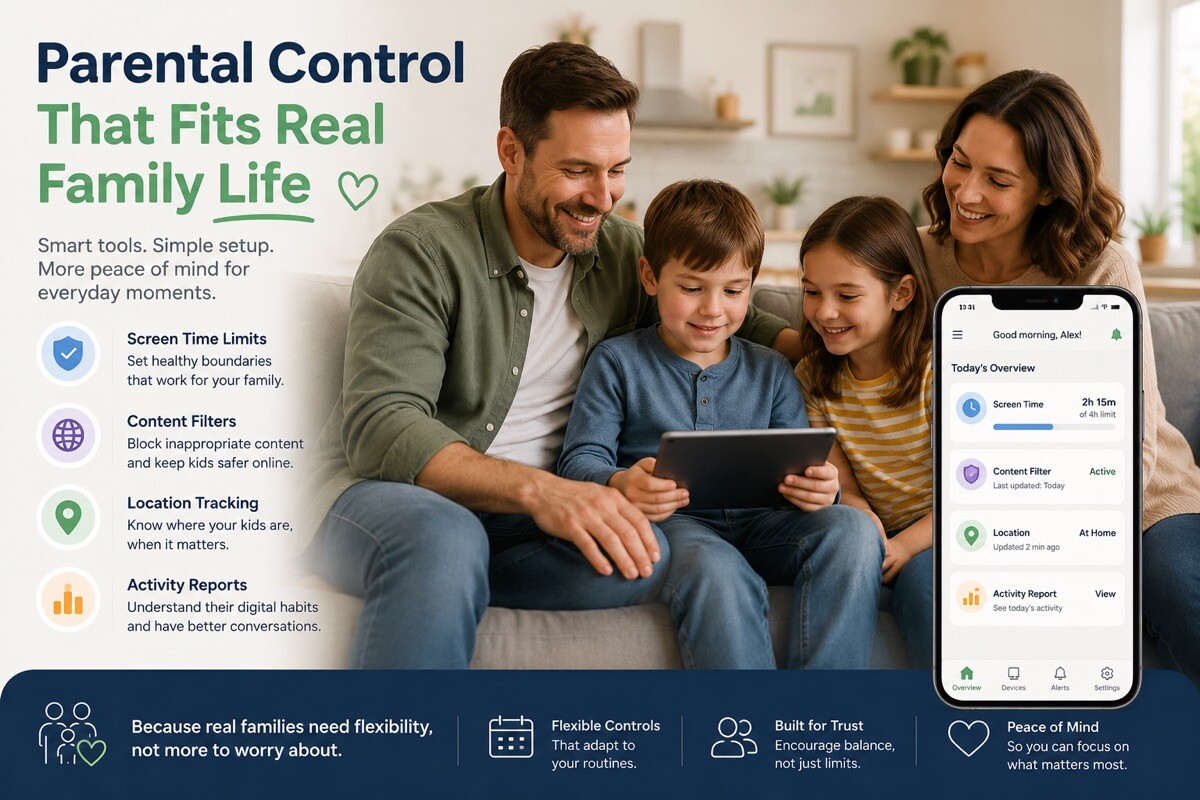
Parental Control That Fits Real Family Life

At 7:18 p.m., Maya’s dad is looking at three things: a half-finished science poster on the kitchen table, a phone that has gone quiet, and a message from soccer practice saying pickup moved to the side lot. That is where parental control stops being an abstract setting in a menu. It becomes a normal family tool: Where is she now? Why is she not answering? Can homework start before Roblox opens again?
With Findmykids, a parent can open the map, see that Maya is still at the field, get a notification when her phone battery is low, and send a Loud Signal if the phone is on silent. The parent can also set digital rules in the same app, so parental control covers more than one problem at a time.
Start with the day, not the settings menu
A useful parental control setup usually begins with ordinary friction. A child leaves school and forgets to text. A pickup plan changes. A tablet turns into “five more minutes” for forty minutes. The parent does not need a lecture about screen time. The parent needs a setup that makes tomorrow easier to handle.
That is why it helps to think in routines. Morning: get to school. Afternoon: know where the child went after class. Evening: keep games and videos from taking over homework. Weekend: let a child visit a friend without turning every update into a phone call.
Findmykids fits this routine-based approach because it puts location, routes, places, app rules, and urgent alerts in one family space. It gives parents small pieces of information at the right time, so they can decide what to do.
Know where the day is happening
The map is often the first habit parents build. You can see the child’s current location and look at route history when the story is unclear: Did Maya go straight to practice? Did she stop at the convenience store with friends? Did the school bus take the usual road?
Safe zones make this calmer. A parent can mark places such as home, school, the library, or soccer practice. Then the parent gets notifications when the child enters or leaves those places. No need to ask, “Are you there yet?” every afternoon.
Route changes matter too. If a child usually walks from school to the community center and the route changes, a notification gives the parent a reason to check in. Sometimes the answer is simple: construction, a friend’s house, a parent-approved stop.
For younger kids who are not ready for a phone, GPS watches can be a separate device. That can work well for elementary school routines and summer camp days.
Make screen rules visible before they become a fight
Screen limits are easier to discuss when the parent and child can point to something specific. “You played for two hours after school” lands differently from “You are always on that phone.” The first sentence can lead to a rule. The second usually starts a fight.
Some screen features depend on the child’s phone. App blocking works on both iOS and Android. On Android, parents can also see time in games and social apps and set limits for individual apps. On iOS, blocking 18+ websites is available.
That gives families room to make rules that match the child’s age. A 9-year-old may need games closed during homework. A 13-year-old may need social apps available after school but unavailable at night.
The useful part is the rule that survives a real week. If a child knows that games open after homework and close before bed, the parent has fewer daily negotiations. If the child sees the rule as part of the family routine, the phone becomes less of a battlefield.
Use alerts for moments when a call is not enough
Phones fail at the exact moment parents want them to work. A child puts a phone in a backpack. Silent mode stays on after school. The battery gets low before pickup. A busy gym or cafeteria makes a normal call easy to miss.
Findmykids gives parents a few backup options. If the child’s phone is on silent, the parent can send a Loud Signal, a call with a loud melody that breaks through silent mode. If the phone battery is low, the parent gets a notification and can remind the child to charge it before leaving.
The SOS signal works from the child’s side. If Maya needs help and cannot make a regular call, she can send an SOS signal. The parent receives the alert with her location. Most families hope they never need it, but it is good to set up before anyone is stressed.
Family circles are useful when more than one adult helps. A parent, grandparent, or older sibling can be part of the same family circle, so pickup and after-school plans do not sit on one person’s phone.
Keep built-in tools in context
Apple Screen Time, Google Family Link, and Find My can help with basic settings. They are worth knowing. They can also feel limited when a family uses mixed devices or when the problem is not just one setting.
A parent with an iPhone and a child with an Android phone often needs a tool that works across that gap. A family may also need location routines, safe places, battery alerts, app rules, and emergency alerts in one place. Built-in tools are part of the picture; Findmykids is the family layer parents can use across daily situations.
The best setup is usually simple. Do not turn on every possible restriction on day one. Start with the moments that already create stress. If pickup is the issue, start with places and route history. If homework is the issue, start with app blocking and a clear evening rule. If the child forgets to answer, set up Loud Signal and talk about when it is fair to use it.
A practical first setup
Here is a clean way to begin without turning the phone into a family project that lasts all weekend:
- Add the parent’s phone first, get the invitation code, and connect the child’s phone through the same app with the child role.
- Mark the places that matter this week: home, school, practice, and one friend’s house.
- Turn on notifications for entering and leaving those places.
- Set one screen rule, not five. Choose the app or time window that causes the most conflict.
- Show the child what SOS and Loud Signal do, so neither feature feels mysterious.
That last step matters. Parental control works better when children know the rules. A 10-year-old does not need every technical detail, but they should know why the family uses the app: school arrival, pickup changes, homework time, and help if something goes wrong.
Final words
Parental control is most useful when it reduces the number of small unknowns in a parent’s day. Did the child arrive? Did the route change? Is the phone about to lose power? Are games open during homework? Those are practical questions, and they deserve practical answers.
Findmykids is available on the App Store and Google Play. You can use basic functions for free, then decide whether your family needs the wider set of tools. If your current setup is a mix of calls, texts, built-in settings, and guesswork, try Findmykids as one place for family location and digital rules.