WordPress Security: How to Protect Your Site From Hackers

40% of the web runs on WordPress. And that alone explains why it is targeted more than any other CMS. Bots scan at scale and probe the same weaknesses across millions of sites. One outdated plugin is all it takes. Most people skip WordPress security until their site gets compromised and they are left figuring out what happened.
That is exactly what we are going to sort out here. We will show you the exact vulnerabilities attackers use to break into WordPress sites and what you can do to shut each one down.
What Is WordPress Security?
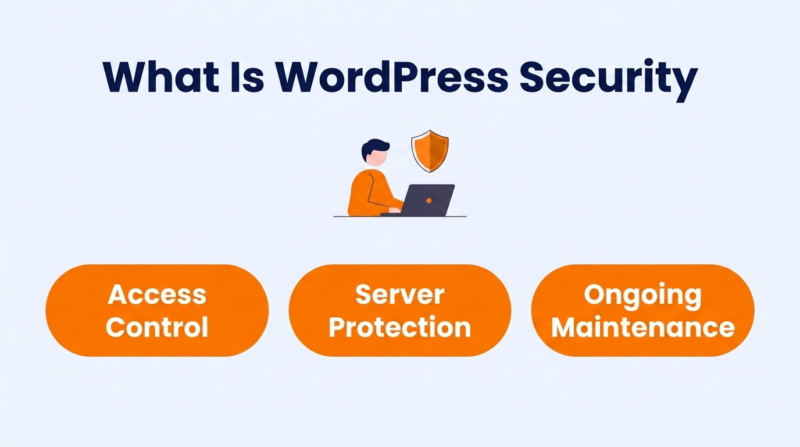
WordPress security is everything you do to keep your site from being broken into. It is not one thing – it is a stack of protections that work together. Your WordPress login page is one layer. Passwords and two-factor authentication control who gets through. Your server is another. File permissions and firewalls determine what is reachable from the outside.
Then there is maintenance. Plugins and themes both need regular updates, and so does WordPress core. Skip any of those, and you are running code with vulnerabilities that attackers already have scripts written for.
Each layer on its own is easy to set up. The hard part is keeping all of them current as your site grows and your team changes.
4 Reasons Why WordPress Security Should Be a Priority

These four reasons show why keeping your WordPress site secure deserves a place on your regular to-do list.
1. Protect Customer and Business Data
A breached WordPress site usually means a breached database. Attackers pull email lists and payment information stored by WooCommerce or membership plugins.
If you collect personal data through forms or registrations, you are on the hook for breach notifications under GDPR and CCPA. The legal fees alone can run into thousands. Every cleanup cost comes out of the money your business has already earned. Plus, your brand name is attached to the stolen data if it ends up on dark web marketplaces.
2. Preserve Your Search Engine Rankings
A hacked website can end up with a warning message beside its Google search listing. Your organic traffic drops almost immediately. The worst part – Google can pull your pages from the index entirely. Months of ranking work are gone in a single day.
Getting relisted after cleanup can take weeks. A brief security incident can cost you an entire quarter of inbound business if organic search is your biggest lead source.
3. Maintain Customer Trust and Brand Reputation
People remember a hacked website much longer than the website remembers the attack. That hesitation can stay around well after everything has been fixed.
B2B buyers are even more cautious. Most run website security checks on vendors before signing contracts. A single incident on your record can knock you out of procurement. For eCommerce sites, this hits especially hard. Shopping cart abandonment spikes after even a rumor of a past breach.
4. Reduce the Cost and Time of Security Incidents
According to IBM’s 2025 Cost of a Data Breach Report, the average breach costs $4.44 million globally.
Your numbers will be smaller – but a $10,000 malware cleanup still hurts when you are a small business. Add in downtime and lost sales. Then factor in the hours your WordPress security team spends rebuilding from backups instead of doing actual work. A $49 security plugin is a lot cheaper than a $2,000 emergency incident response.
6 Common WordPress Vulnerabilities Every Website Owner Should Know
These are the six vulnerabilities behind most WordPress security breaches. Not theoretical risks – active exploits running every single day.
| Vulnerability | Entry Point | What Attackers Get |
| Outdated Core Files | Version-specific exploits | Full site access through public flaws |
| Vulnerable Plugins | Unpatched plugin code | Database access and backdoors |
| Outdated Themes | Theme PHP execution | Server access and hidden backdoors |
| Brute-Force Attacks | wp-login.php | Admin account takeover |
| SQL Injection | Forms and URL parameters | Direct database read/write |
| Cross-Site Scripting | Comment fields and user input | Session hijacking and phishing |
1. Outdated WordPress Core Files
Every WordPress core software release comes with a public changelog listing which security holes were patched. Attackers read those changelogs too. And you are carrying four releases’ worth of documented vulnerabilities if you are still on WordPress 6.3 when 6.7 is out. Bots match version numbers to exploits. Outdated software is how most automated attacks find their way in.
2. Vulnerable WordPress Plugins
91% of all WordPress vulnerabilities in 2025 came from third-party plugins. Not the core software. Plugin files. That year saw 11,334 new vulnerabilities reported across the ecosystem – up 42% from 2024. And plugins that haven’t been updated in over a year are the worst offenders. Nobody is fixing the flaws being discovered in their code.
3. Poorly Coded or Outdated Themes
WordPress themes run PHP on every page load. A theme with bad code can hand your entire server to an attacker. Free themes from random download sites sometimes ship with backdoors already built in – the malware is part of the package. Even paid themes from legitimate developers turn into liabilities once the developer stops pushing updates.
4. Brute-Force Login Attacks
Your wp-login.php page is wide open by default. No login limits. No CAPTCHA. Bots test thousands of username-password combinations until something works. The default “admin” username paired with a short password is still the most common way attackers gain access.
And those login attempts don’t need to succeed to create security issues. Thousands of them can still slow your website down.
5. SQL Injection (SQLi)
An attacker types database commands into your contact form or search bar. If your site doesn’t sanitize that input, those commands execute directly against your WordPress database. They can pull your entire user table. They can create a new admin account that you won’t notice for weeks. Badly coded forms and search fields are the usual entry points.
6. Cross-Site Scripting (XSS)
XSS works differently. An attacker slips malicious JavaScript into one of your web pages. Every visitor who opens that page unknowingly runs the code, which can steal session cookies or send them to fake login screens. Comment sections are the most frequent target. One injected script can affect hundreds of visitors before anyone notices.
9 WordPress Security Best Practices to Help Prevent Cyberattacks
These nine WordPress security practices will close the majority of attack vectors on your site. Some take five minutes – others need regular upkeep.
1. Keep WordPress Core, Themes, and Plugins Updated
Five hours – that is the median time between a vulnerability being publicly disclosed and attackers mass-exploiting it. Every delayed WordPress installation gives them more time.
- Set WP_AUTO_UPDATE_CORE to true in wp-config.php. This turns on automatic minor updates for WordPress core.
- Go to Plugins > Installed Plugins and click “Enable auto-updates” on each active plugin individually. Also, remove unused WordPress plugins.
- Check your update log weekly. Auto-updates fail silently sometimes and can leave your site in maintenance mode.
2. Use Strong Passwords and Enable Multi-Factor Authentication
An 8-character password gets cracked in under an hour on modern hardware. MFA means an attacker needs your phone in their hand, even if they guess the password.
- Install WP 2FA or the Two Factor plugin for time-based one-time passwords. Skip SMS-based MFA – SIM swap attacks defeat it.
- Set a minimum 16-character password requirement. WordPress 6.5+ has a built-in strength meter on the profile page.
- Delete the default “admin” username. Create a new admin account with a non-obvious name and remove the original.
3. Choose Secure and Reliable WordPress Hosting
Your hosting company runs the server your site is on. Your site is already exposed before you install a single plugin if they are running outdated PHP with no firewall. Managed WordPress hosts handle server hardening for you.
- Ask your host what PHP version they are running. If it is below 8.1, your server is on end-of-life software with no security patches.
- Verify your hosting provider stores daily automatic backups on a separate server. Same-machine backups get destroyed alongside your site in an attack.
- Ask whether your host includes WAF protection and automatic malware scanning. Kinsta and Cloudways include both.
4. Install a Web Application Firewall (WAF)
A WAF filters incoming traffic before it reaches WordPress. SQL injection attempts and XSS payloads get blocked at the network level – your PHP code never even sees them.
- Install Wordfence or Sucuri if your hosting environment doesn’t include a WAF. Both have free versions with traffic filtering and IP blacklisting.
- Block XML-RPC in your WAF settings. Almost no modern WordPress feature uses it, but brute-force amplification attacks do.
- Pair your WAF with WP Fastest Cache to serve static HTML to most visitors. Fewer PHP requests reaching your server means fewer requests for attackers to target.
5. Follow the Principle of Least Privilege for User Accounts
Give people only the access they actually need. A blog writer doesn’t need the ability to install plugins. If their account gets compromised, the attacker gets exactly the permissions that the account had.
- Open your Users panel. Anyone with Admin or Editor access who only writes blog posts should be reassigned to the Author role.
- Use the Members plugin to strip install_plugins and edit_themes from every role except your primary admin account. Disable file editing in the WordPress dashboard to stop attackers from modifying theme or plugin files.
- Delete accounts for anyone who no longer works with you. Old login credentials are one of the most common entry points for attacks.
6. Back Up Your Website Automatically and Test Restores
A backup you have never tested is not a backup. It is a file that might work. The real test is whether you can actually restore your site from it when everything is down.
- Set up UpdraftPlus or BlogVault for daily automatic backups. Store copies in two places – your host’s system plus an off-site service like Google Drive.
- Restore a backup on a staging site once per quarter. Confirm everything loads and the database is intact before you count it as verified.
- Keep 30 days of backup history. Malware can stay dormant for weeks, and a 7-day archive might only have infected copies.
7. Scan Regularly for Malware and Security Vulnerabilities
Malware can be in a WordPress site for months with zero visible symptoms. Some infections only activate for mobile users or visitors from specific countries. Desktop visitors see the normal site. You would never know unless a scanner caught it.
- Run Wordfence or MalCare scans daily. Configure email alerts so infected files get flagged the same day.
- Do a manual file integrity check once a month through your host’s control panel. Compare your core files against WordPress.org’s official checksums.
- Build scanning into your regular site maintenance. Check scan logs monthly to confirm nothing has been failing quietly.
8. Secure Critical WordPress Files and Server Configurations
wp-config.php holds your database password. .htaccess controls who can access what on your server. Both files sit in predictable locations by default. Moving them and securing them down takes about 10 minutes.
- Move wp-config.php one directory above your WordPress root. WordPress checks the parent directory automatically. Your site keeps working, but the file is no longer web-accessible.
- Add define(‘DISALLOW_FILE_EDIT’, true); to wp-config.php. This kills the built-in code editor that attackers use after getting WP admin access.
- Block PHP execution in /wp-content/uploads/ with an .htaccess deny rule. This stops attackers from running malicious PHP files uploaded through vulnerable forms.
9. Encrypt All Website Traffic With HTTPS and an SSL Certificate
Everything between your visitors and your server moves in plain text without SSL. Anyone on the same network can read the passwords and form data. Google also ranks HTTPS sites higher – so you are losing protection and search visibility at the same time.
- Install a free Let’s Encrypt SSL certificate – most hosts have one-click setup. Then add define(‘FORCE_SSL_ADMIN’, true); to wp-config.php.
- Use the Really Simple SSL plugin to auto-redirect HTTP to HTTPS and fix mixed-content warnings from images or scripts loading over the wrong protocol.
- Set your HSTS header to a max-age of 31536000 (one year). This forces browsers to always use HTTPS, and blocks downgrade attacks.
4 Businesses With Strong WordPress Security Strategies Worth Studying
Every business handles WordPress security features a little differently, but the best ones share a few smart habits. The examples below show what they are doing right and what you can borrow for building a secure WordPress site.
1. DialMyCalls – Blocking Bot Signups on an AI Service Signup Flow
The WordPress signup form on DialMyCalls’s AI phone answering service collects phone numbers and business details. A bot submitting fake signups doesn’t just waste database space – it triggers thousands of outbound calls, each costing real money.
They put hCaptcha on every form and added server-side phone number validation that checks submitted numbers against known VoIP ranges used by spammers. Any single IP that submits more than five requests in ten minutes gets blocked automatically.
If your WordPress site triggers any kind of downstream action, bot protection on your forms is not optional. One afternoon of automated submissions can create a real financial problem.
2. Start in Wyoming – Encrypting Client Documents During LLC Filing
Start in Wyoming’s LLC setup services use a WordPress-based intake process to help people form LLCs. Clients upload articles of organization and personal identification documents directly through the site.
Sensitive legal documents on a web server are a high-value target, so they encrypt every uploaded file with AES-256 the moment it arrives. Even if someone breaches the server, the files are unreadable without the decryption key. All documents are also auto-deleted from the server 48 hours after processing.
If your WordPress site accepts file uploads of any kind – resumes, contracts, ID scans – those files probably stay on your server indefinitely. Set up scheduled deletion for anything you have already processed.
3. John Campbell, The Hilton Head Realtor — Restricting Third-Party Scripts on a Real Estate Site
John Campbell, the Hilton Head realtor’s website pulls live MLS listings through an IDX integration. That integration loads third-party JavaScript on every property search page – and third-party scripts are how XSS attacks typically arrive.
To enhance security, they added Content Security Policy headers that whitelist exactly two external domains: their IDX provider and their analytics platform. Every other script source gets blocked automatically. They also rate-limit search queries to prevent scrapers from downloading the full listing database.
Most WordPress websites load scripts from a dozen external sources with zero restrictions. If you don’t have CSP headers set, every third-party script on your site has full execution access to your pages.
4. Performance Lab – Monitoring Checkout Files for Card-Skimming Malware
Performance Lab sells supplements like Pre Lab Pro through a WordPress storefront. eCommerce checkout pages are a prime target for Magecart-style attacks – malware that injects JavaScript into payment templates to skim credit card numbers in real time.
Their defense: daily file integrity monitoring. Every checkout template file gets hashed with SHA-256 and compared against a verified baseline. If a single byte changes without a matching code deployment, the system rolls the file back and fires an alert. They also tag external scripts with Subresource Integrity attributes, so tampered CDN files get rejected by the browser.
If your WordPress site takes payments, check whether your checkout template files are monitored. WooCommerce templates are the exact files Magecart targets. A daily hash comparison catches injections before your customers get skimmed.
Conclusion
WordPress security is not something you finish. New vulnerabilities show up weekly. Attackers automate their exploits within hours. The sites that don’t get breached are the ones that treat security like maintenance. Ongoing. Never skipped.
Start with updates and limit login attempts. Move your config files out of the web root. Add monitoring last. Those robust security measures close the biggest gaps first.
We built WP Fastest Cache to keep WordPress sites fast with minimal setup. Our plugin creates static HTML versions of your pages to cut PHP execution and reduce server load – fewer PHP requests means a smaller attack surface. Over 1.5 million sites use it, with a 4.9-star rating across 4,200+ reviews. Try WP Fastest Cache now.