WordPress Maintenance Checklist: What to Do Every Month on Your Site

WordPress maintenance never gets the same attention as design updates or marketing campaigns do. Yet, month after month, it decides how your site performs and how visitors experience every page. That is why experienced site owners keep maintenance on repeat.
And this is exactly what we will help you set up here. You will get a WordPress maintenance plan that covers 15 monthly tasks worth putting on your calendar and keeping there. And there is a printable checklist template at the top so you can track everything in one place.
WordPress Maintenance Checklist Template You Can Customize To Match Your Priorities
Copy this into a Google Sheet or print it out. Check off each action as you go – once you have done it two months in a row, the whole list takes about 90 minutes.
| # | Task | Monthly WordPress Maintenance Actions |
| 1 | Full Website Backup | ☐ Run complete site backup
☐ Verify backup file integrity ☐ Store one copy off-server |
| 2 | Update WordPress Core | ☐ Check for new core release
☐ Test update on staging first ☐ Apply update to live site |
| 3 | Update Installed Plugins | ☐ List pending plugin updates
☐ Update one plugin at a time ☐ Test site after each update |
| 4 | Update Active Theme | ☐ Check for theme update
☐ Review the changelog for changes ☐ Test front-end layout after update |
| 5 | Remove Unused Plugins & Themes | ☐ Deactivate unused plugins
☐ Delete deactivated plugins fully ☐ Remove all inactive themes |
| 6 | Scan for Malware | ☐ Run full malware scan
☐ Review flagged files ☐ Check failed login attempts |
| 7 | Fix Broken Links | ☐ Run broken link scan
☐ Redirect or fix 404 URLs ☐ Update outdated anchor text |
| 8 | Test Website Forms | ☐ Submit every form manually
☐ Verify email delivery ☐ Check confirmation pages load |
| 9 | Optimize Database | ☐ Delete old post revisions
☐ Clear spam comments ☐ Remove expired transients |
| 10 | Review Speed Performance | ☐ Run PageSpeed Insights test
☐ Compare scores to last month ☐ Log any new speed issues |
| 11 | Clear Cache and CDN | ☐ Purge full page cache
☐ Refresh CDN edge settings ☐ Verify cached pages load correctly |
| 12 | Audit User Management | ☐ Remove inactive admin accounts
☐ Downgrade unnecessary roles ☐ Confirm 2FA is active |
| 13 | Test Mobile Responsiveness | ☐ Test key pages on phone
☐ Check touch targets and forms ☐ Verify images scale correctly |
| 14 | Monitor Error Logs | ☐ Review PHP error log
☐ Check server error log ☐ Resolve recurring warnings |
| 15 | Verify eCommerce Checkout | ☐ Place a test order
☐ Confirm payment processing ☐ Check order confirmation emails |
Why WordPress Maintenance Should Be a Monthly Priority: 5 Key Benefits
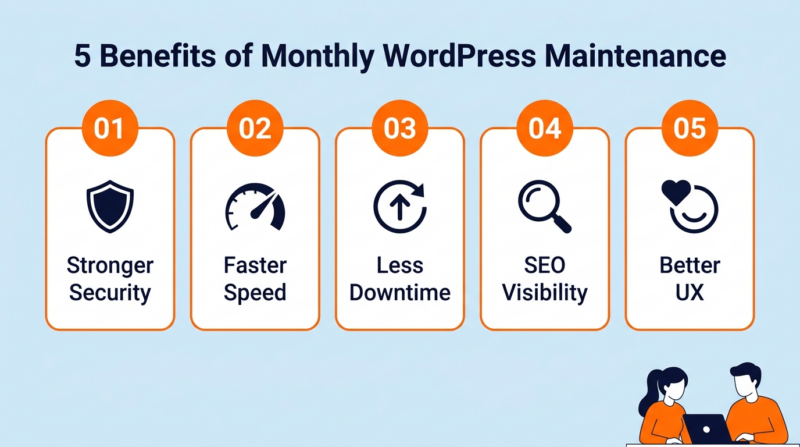
Missing a month feels fine right up until something goes wrong. These five reasons explain why monthly is the right cadence – not quarterly, not “when I remember.”
1. Strengthens Website Security
Hackers aren’t sitting around studying your website. They scan for plugins across multiple websites with known vulnerabilities and exploit them automatically the moment they find yours. No human involved.
11,334 new vulnerabilities were found across the WordPress ecosystem in 2025 – a 42% increase from 2024. Consistent maintenance closes those holes before the bots get to them and keeps your site secure.
2. Improves Site Speed and Performance
Website speed doesn’t degrade in one dramatic drop. It drifts. Pages that opened in 1.8 seconds in January slowed down to 3.5 seconds by July because you didn’t clean the database or refresh the cache. And your visitors won’t tell you the site got slower. They will just leave.
A monthly speed check gives you a baseline for keeping your site up to date. Without one, you only notice the slowdown when traffic performance drops far enough to show up in your Google Analytics – and by then, you have already lost months of visitors.
3. Reduces the Risk of Downtime
Server crash isn’t the most common reason a WordPress website goes offline unexpectedly. It is a plugin conflict after an auto-update that nobody reviewed. Two plugins updated overnight. One of them changed a function the other depends on, and the site threw a white screen at 7 AM when your first customers tried to visit.
Twenty minutes of monthly review catches those conflicts before they take the site down during business hours.
4. Preserves Search Engine Visibility
Google factors page speed and security signals into rankings. It drops positions if your site slows down or picks up a malware flag. Getting those rankings back takes months even after the technical fix is in – because Google recrawls on its own schedule, not yours.
Broken internal links are just as bad. Every 404 wastes crawl budget that should be spent indexing the pages that actually bring in revenue. A monthly link audit stops that slow decline in long-term performance.
5. Creates a Better Experience for Visitors
A contact form that stopped sending emails two months ago looks identical to one that works. The difference is that nobody who filled it out ever got a reply. And you wouldn’t know unless you tested it yourself.
Product pages that display wrongly on mobile and checkout flows that freeze on the payment step push visitors to whoever shows up next in their search results. And they only get found by someone who actually checks.
15 WordPress Maintenance Tasks You Should Perform Every Month for a More Secure and Reliable Website

These are the 15 website maintenance tasks worth checking regularly to keep everything running smoothly
1. Create a Full Website Backup
Backups are the one thing standing between a failed update and starting your site over from zero. Most people set up UpdraftPlus or BlogVault once and assume everything is covered. But automated backups need monthly verification – a backup file that exists but can’t be restored is worth nothing.
- Open your backup plugin dashboard and check that the most recent backup finished without errors. Look at the file size. If it is half what it usually is, something got skipped.
- Download one backup to your local machine + store a second copy on a separate cloud service. On-server backups get wiped if your hosting environment is compromised.
- Once per quarter, test a restore on a staging environment. Most WordPress site owners find out their backups don’t actually work during an emergency.
Best Tools: UpdraftPlus | BlogVault | BackWPup
2. Update WordPress Core Version
Core updates close the WordPress security gaps that every plugin on your site inherits. 91% of WordPress vulnerabilities in 2025 came from plugins, but an outdated core weakens the protections those plugin patches depend on.
- Go to Dashboard → Updates. Minor releases like 6.7.1 → 6.7.2 are security patches. Apply those within a week of release.
- Run the update on a staging copy first. Click through your homepage and a product page. Test the contact form too. If nothing looks off, push it live. Enable maintenance mode plugin to display a simple maintenance page.
- Clear your page cache after the live update. Cached pages can hide display bugs that only fresh visitors would see.
Best Tools: WordPress Built-In Updater | ManageWP | WP-CLI
3. Update Installed Plugins
Plugin developers release updates all the time. Let them stack up for a couple of months, and tracking down the cause of an issue becomes much harder. Updating one at a time is the only way to keep troubleshooting realistic.
- Filter by “Update Available” under Plugins → Installed Plugins. Enable WordPress maintenance mode and start with security plugins – those patches are time-sensitive.
- Update one, then check the front end and admin dashboard for anything broken. If something goes wrong, roll back that single plugin.
- After finishing all updates, clear your page cache and object cache. Old cached data from previous plugin versions can mimic display bugs that aren’t actually there.
Best Tools: ManageWP | MainWP | WordPress Built-In Updater
4. Update Active Theme Files
Theme updates change template files that control how every page on your site shows up. Your customizations are safe if you are using a child theme. But if you are editing the parent theme directly, one update will overwrite all of it.
- Check Appearance → Themes for a pending update. Read the changelog – theme devs sometimes restructure template files in ways that break custom layouts without warning.
- If you run a child theme, compare your overridden templates against the new parent version.
- After updating, open the homepage and one blog post. Shifted headings and misaligned buttons are the earliest signs of a problem.
Best Tools: WordPress Built-In | WP-CLI | Child Theme Configurator
5. Remove Unused Plugins and Themes
The deactivated plugin’s code is still on your server… and still accessible. And attackers can take advantage of any vulnerability – active plugin or not. Every forgotten, deactivated plugin is another way into your site.
- Go to Plugins → Installed Plugins. Filter by “Inactive.” Delete anything you haven’t activated in two months.
- Under Appearance → Themes, keep your active WordPress theme + one default fallback. Delete the rest.
- Check for orphaned database tables after removing plugins. WP-Optimize flags these – they keep consuming speed and storage long after the plugin is gone.
Best Tools: WP-Optimize | Advanced Database Cleaner | Health Check
6. Scan Website for Malware and Security Issues
Malware on a WordPress site can run for weeks without any visible signs. Your homepage looks normal to you. But Google’s crawler is seeing redirect scripts and spam links in your markup.
- Run a server-side malware scan. Front-end tools only see what is in the HTML output. Server-side scans check every PHP file for injected code.
- Pull up your login activity log for the last 30 days. Any successful logins from locations or IP addresses you don’t recognize mean that you need to change the login credentials immediately.
- Check Google Search Console under Security & Manual Actions. Google flags compromised sites here before sending the email notification. Also, confirm your SSL certificates are active and renewing correctly.
Best Tools: Wordfence | Sucuri | MalCare
7. Check and Fix Broken Internal Links
Links pointing to the old version break every time you delete a page or change a URL slug. A 30-page site can build up 15-20 broken links in six months before you notice. And each sends visitors to a dead end, and wastes crawl budget.
- Crawl your site and sort 404 results by the number of internal links to each. Fix the highest-impact ones first.
- Set up 301 redirects for deleted pages that have external backlinks. The redirect keeps whatever authority those backlinks were carrying.
- Update anchor text on links where the target page’s content has changed. It confuses both readers and search engines.
Best Tools: Broken Link Checker | Screaming Frog | Ahrefs
8. Test Website Forms and Submission Flows
This is the task most people skip because the form still looks right on the page. But a plugin update can reset your SMTP credentials. A hosting provider migration can break the mail function entirely. The form renders perfectly while every submission disappears into nowhere.
- Fill out every form on your site with a test email address. Make sure the data shows up in your form plugin’s entry log, and you get the notification email.
- Verify that auto-reply emails are still going out with the right sender name and formatting.
- Conditional logic fields break first after updates. Test every combination if a dropdown shows additional fields.
Best Tools: WPForms | Gravity Forms | Contact Form 7
9. Perform WordPress Database Optimization
WordPress saves every draft revision and every deleted comment in the database forever. Expired transients accumulate there, too. If you publish two posts a week, that is 500+ orphaned revisions in six months – and every one of them adds overhead to the queries that build your front-end pages.
- Delete post revisions older than 30 days. WP-Optimize can do this on a weekly schedule automatically.
- Clear spam comments and expired transients in one batch. Transients are temporary cached values that plugins create and rarely clean up when they are done with them.
- Run the built-in “Optimize” command on your database tables. It reclaims disk space from deleted rows and speeds up queries.
Best Tools: WP-Optimize | WP Fastest Cache | Advanced Database Cleaner
10. Review Website Speed Performance
Running a speed test once tells you nothing useful. You need last month’s score next to this month’s score for the site’s technical performance optimization. A 0.3-second increase in LCP is invisible on a single test but obvious on a trend line – and it tells you something changed before your visitors start leaving over it.
- Run your homepage and one high-traffic inner page on PageSpeed Insights. Record the scores in a spreadsheet.
- Go to Core Web Vitals in Search Console. Check every page that moved down from “Good” to “Needs Improvement” since last month.
- Check for uncompressed images uploaded since the last check or a plugin that added unminified JavaScript.
Best Tools: Google PageSpeed Insights | GTmetrix | Pingdom
11. Clear Caching Systems and Refresh CDN Settings
Your caching plugin stores static copies of your pages so the server doesn’t rebuild them for every visitor. That works great until you update a price or publish a new post – and visitors keep seeing the old version because nobody purged the cache.
- Open your caching plugin and run a full purge. WP Fastest Cache does this in one click – the “Delete Cache” button wipes both the minified files and the page cache at the same time.
- Log in to your CDN dashboard (Cloudflare or KeyCDN) and purge the edge cache separately. CDN servers cache on their own – clearing WordPress cache alone doesn’t touch them.
- Open your homepage in an incognito window after the purge. Make sure the current version loads and the speed holds steady while the cache rebuild finishes.
Best Tools: WP Fastest Cache | W3 Total Cache | Cloudflare
12. Audit User Accounts and Access Levels
That freelance developer you hired still has admin access to your WordPress dashboard. So does the content writer who left the project in March. Every one of those forgotten accounts is an entry point that is wide open.
- Sort Users → All Users by role. Delete the account entirely if any Administrator or Editor hasn’t logged in for 60+ days and no longer works on the site.
- Downgrade anyone who only publishes posts to Author or Editor – they don’t need to touch plugin settings.
- Check that every remaining admin account has two-factor authentication active. One admin account with 2FA is one of the most effective basic security measures you can put in place for any WordPress site.
Best Tools: WP Activity Log | Wordfence | WordPress Built-In Users Panel
13. Test Mobile Responsiveness & Image Optimization Across Pages
You added three new product images last week and a comparison table the week before. Both look fine on the desktop. On a phone, the table overflows the viewport, and one of the images pushes the Add to Cart button below the fold. Desktop testing catches zero percent of these problems.
- Open your five highest-traffic pages on an actual phone. Check that images stay inside the screen and buttons are tappable without zooming. Make sure text doesn’t run off the edge.
- Any page edited in the last 30 days gets priority. New content blocks and resized images are the most common source of mobile layout breaks.
- Use Chrome DevTools device mode to test at 768px width – the tablet breakpoint where the most CSS bugs hide between phone and desktop testing.
Best Tools: Chrome DevTools | BrowserStack | Google Mobile-Friendly Test
14. Monitor Error Logs and Server Health
PHP errors and server warnings don’t show up on the front end. They quietly slow the site down and eat disk space. They can also be early signs of a security compromise. You won’t find any of them by browsing your own site. You have to go look at the logs.
- Open your PHP error log through cPanel or your hosting dashboard. Also, check that your server is running the latest stable PHP version. A single PHP notice repeating 10,000 times a day burns server resources even when the site appears to work fine.
- Check disk usage on your WordPress hosting account. Error logs that aren’t rotated can grow to several gigabytes on complex sites and trigger storage limits.
- Install Query Monitor temporarily to find slow database queries. Anything over 0.5 seconds means a poorly coded plugin or a database table that is missing an index.
Best Tools: Query Monitor | Health Check & Troubleshooting | WP Debugging
15. Verify eCommerce Checkout and Payment Functions
There is no error message waiting for you in the admin panel when the checkout page stops working. The page looks normal… the payment just doesn’t go through. Gateway API keys expire quietly. Plugin updates can reset your WooCommerce tax rules to defaults.
- Run a test order on every active payment method. If you accept Stripe and PayPal, test both separately. Use sandbox mode to avoid processing a real charge.
- Confirm that the confirmation email arrives with the right order details and that the order shows up in WooCommerce → Orders with the correct status.
- Check shipping and tax settings. A plugin update that resets your tax rules to default means a $0.00 tax line on real orders.
Best Tools: WooCommerce Built-In Test Mode | Stripe Test Dashboard | PayPal Sandbox
4 Case Studies That Show Why Consistent WordPress Maintenance Pays Off
Each of these examples depends on different functionality to make money. What connects them is a site maintenance routine that caught something before it reached customers.
1. Custom Sock Lab
Custom Sock Lab’s athletic socks are sold through a WooCommerce store built on WordPress with Elementor and the Astra theme. Their entire business model runs through an on-site product customizer. And that customizer depends on JavaScript hooks between Elementor’s rendering engine and WooCommerce’s cart API, working identically after every software update.
During the latest monthly update cycle, their WordPress expert applied a WooCommerce update to the staging site first – standard practice they have followed since launching. The update changed how product variation data was passed to the cart session. The uploaded image data wasn’t persisting through to the order confirmation.
Their staging test caught it within 15 minutes of applying the update. The fix took 20 minutes – one custom function needed a single parameter adjusted to match the new WooCommerce cart API structure. Had that update gone live untested, every order placed during their corporate gift season (30% of their annual revenue) would have shipped without the custom artwork.
2. Mesothelioma.net
Google classifies Mesothelioma.net’s expert-reviewed medical content about asbestos-related cancers as Your Money or Your Life content. A single malware injection that plants spam links in the site’s HTML would trigger a manual action from Google’s search quality team.
Their WP maintenance runs on a strict monthly schedule. Wordfence performs a full server-side malware scan on the first Monday of every month, and the results get reviewed alongside the login activity log for the previous 30 days.
Any login attempt from an unrecognized IP triggers an immediate password rotation for that account. Schema markup (FAQPage and BreadcrumbList types) is validated against Google’s Structured Data Testing Tool after every content update to prevent rich snippet loss.
Their peritoneal mesothelioma page was last updated in March 2026 with new survival rate data and citations from Dr. Paul Sugarbaker’s latest surgical outcomes research on cytoreductive surgery with HIPEC.
That combination of monthly security verification and content freshness is what keeps a medical page ranking on page one for a keyword where Google’s algorithms are specifically tuned to penalize anything that looks neglected or untrustworthy.
3. Uproas
Uproas TikTok agency ad accounts are a hit among performance marketers – the kind of buyers who will close the tab if a page takes more than two seconds to load. It has three embedded video testimonials, plus a comparison table. A dynamic pricing table pulls live tier data for plans on top of that.
All of that adds database queries and server processing time that compound as the site grows. Uproas publishes 3-4 blog posts per week, which generates post revisions and transient data that bloats the database within a single month.
Without a monthly cleanup, the query load from revision history alone adds measurable latency to front-end page rendering. And for them, even 200 milliseconds of added load time has a direct cost.
They have a proper maintenance routine that handles database optimization on the 15th of every month – clearing post revisions older than 14 days and flushing expired transients. The MySQL OPTIMIZE command runs on the wp_posts and wp_options tables as the final step. Full-page cache gets purged and rebuilt after every new blog post goes live.
Uproas uses a URL shortener for campaign links shared across email sequences and client reports. During their monthly maintenance review, the team checks those shortened URLs to confirm they still point to the correct landing pages and haven’t been affected by page restructures or URL changes.
4. IceCartel
IceCartel’s diamond grillz collection has 20+ products, each with variant selectors for gold type and stone configuration. Every product image needs to render at full resolution on mobile because their customers are making a purchase decision based heavily on how the grillz look.
Monthly mobile responsiveness testing catches the layout breaks that new product additions create. When their team added six new perm cut grillz styles, the product grid shifted from three columns to two on certain Android devices. One product card’s “Add to Cart” button got pushed behind the sticky footer navigation entirely.
Nobody on the team saw it because they were checking from a desktop. The monthly mobile test found both issues before they went into the weekend, when mobile traffic from Instagram referrals peaks.
IceCartel accepts payments through Affirm and ShopPay, which means two separate payment integrations that can each break independently after platform updates. In February 2026, a Shopify platform update changed how Affirm’s financing widget initialized on the checkout page. Their monthly payment test caught the Affirm integration failure before a single customer encountered it.
Without that test, Affirm would have been non-functional for at least 72 hours during their Valentine’s Day promotional push. For a product category where financing drives a significant share of completed purchases, that outage would have cost them multiple four-figure sales.
Conclusion
You don’t have to do all 15 WordPress maintenance and support tasks perfectly on day one. Start with backups and updates – those two prevent the most damage. Add security scans and speed checks the following month. By month three, the whole checklist takes about 90 minutes because you have built the routine. You can later move to WordPress maintenance services as your site grows.
We built WP Fastest Cache as the caching and speed optimization plugin for WordPress sites that need to stay fast without constant manual tuning. It generates static HTML files and minifies CSS and JavaScript. It also handles GZIP compression and browser caching – all from one settings page.
Over 1.5 million client sites run on it, and every license is a one-time payment. If your monthly speed checks keep flagging slow load times, WP Fastest Cache fixes the underlying problem. Try WP Fastest Cache.